

How to Use the Edad AI Planner to Create a Personalized Study Schedule
Preparing for an exam is easier when you know what to study, when to study, and how much time you have left. But creating a study timetable that fits around classes, work, and other responsibilities can be difficult.
The Edad AI Planner helps you turn your exam goals into a structured study schedule. You can select your study materials, set your exam date, choose your available study times, and generate a plan that fits your routine.
You can also sync your schedule with Google Calendar, making it easier to keep track of your study sessions.
Here is how to use the Edad AI Planner.
Step 1: Log in to Your Edad AI Dashboard
Visit edadai.com and log in to your account.
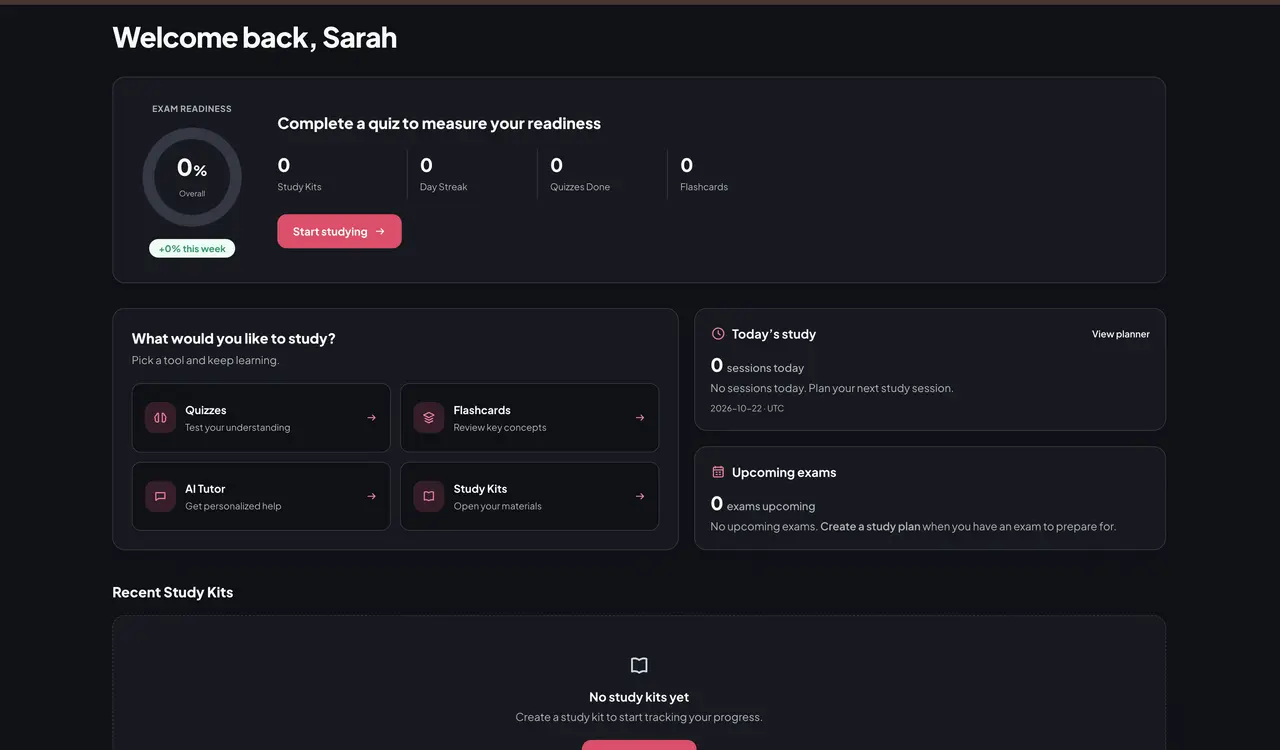
Your dashboard gives you access to your study tools, including Study Kits, Quizzes, Flashcards, the AI Tutor, and the AI Planner.
Step 2: Open the AI Planner
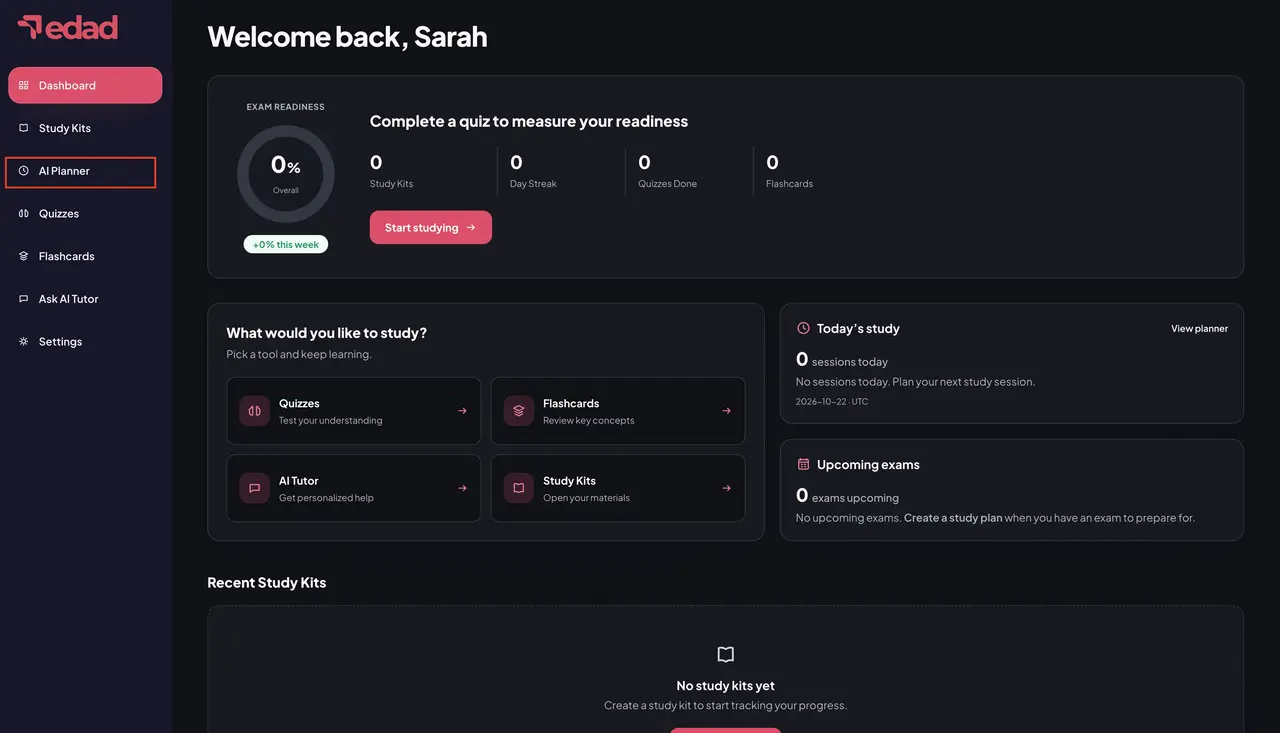
From the main menu on your dashboard, select AI Planner.
This opens your study calendar, where you can view scheduled sessions and create new study plans.
Step 3: Connect Your Google Calendar
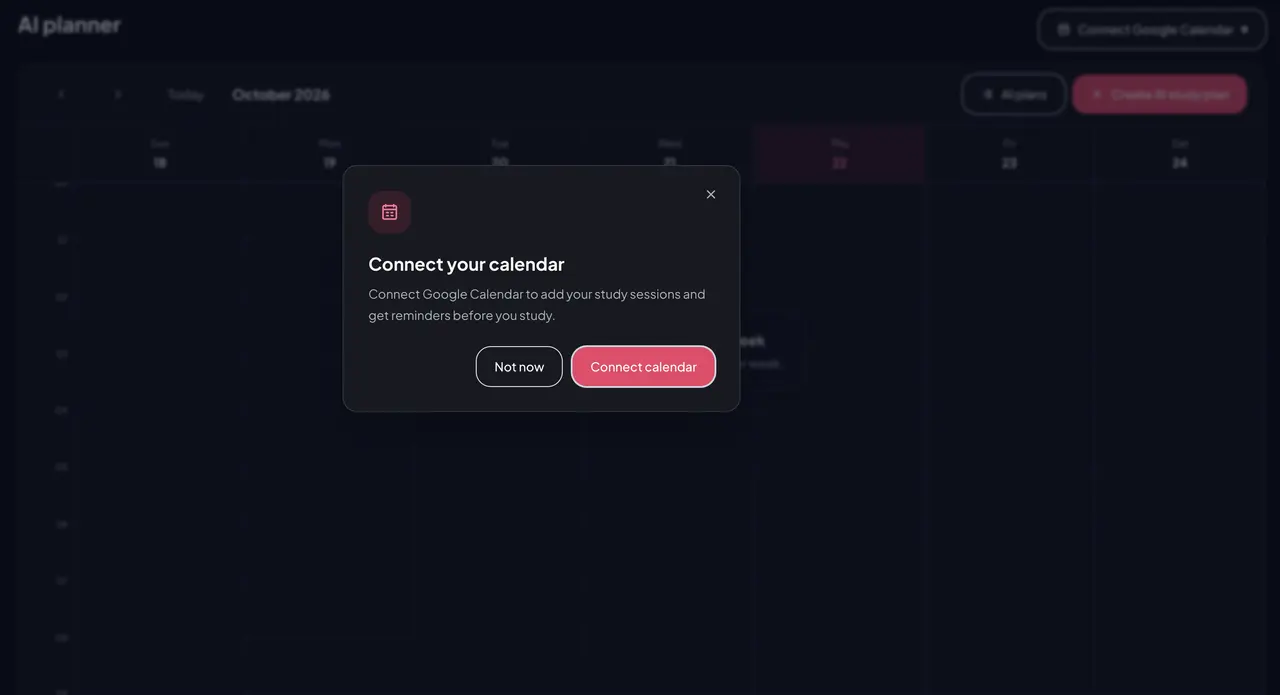
Click the option to connect Google Calendar and follow the on-screen instructions to authorize the connection.
Once connected, Edad AI can sync your study schedule with your Google Calendar, helping you keep your exam preparation organised alongside your other activities.
You can skip this step initially, but connecting your calendar allows you to access the calendar integration features.
Step 4: Create a New AI Study Plan
On the AI Planner page, click Create AI Study Plan.
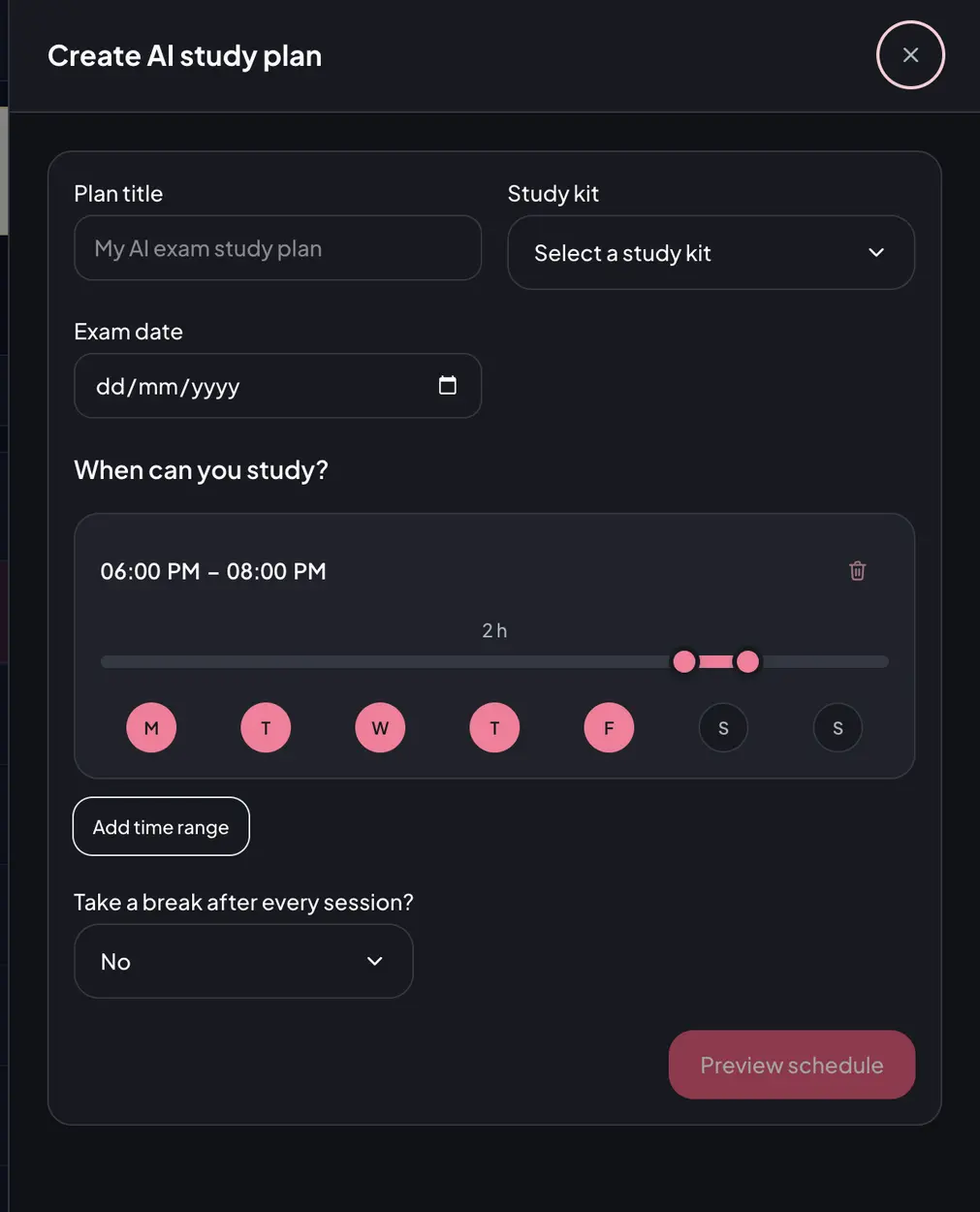
A form will open asking for the details needed to build your schedule.
Complete the following fields:
Plan title: Give your plan a name you can easily recognise, such as “ICAN Exam Preparation” or “First Semester Exams.”
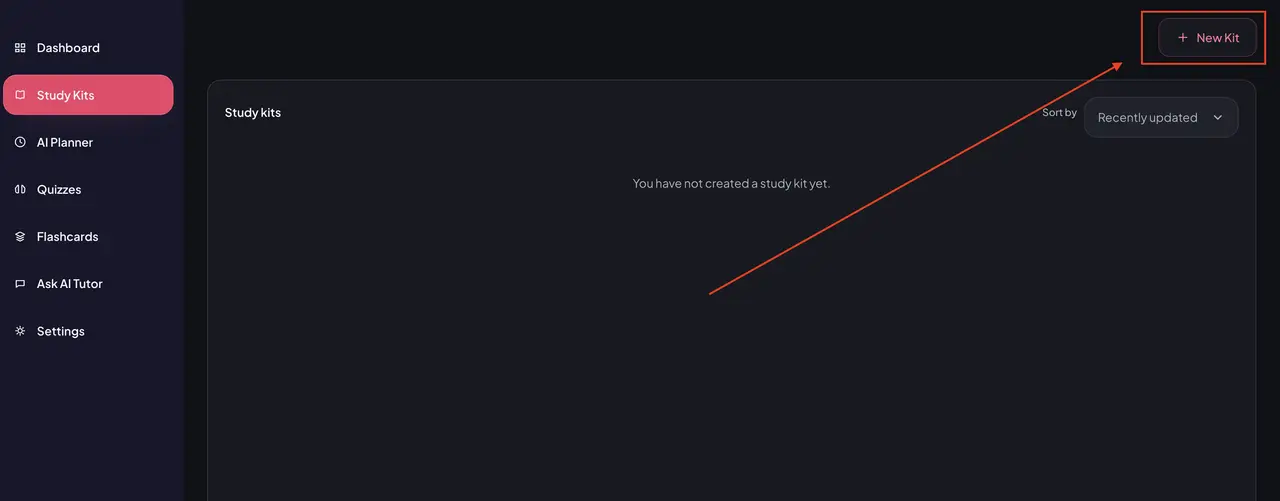
Study kit: Select the study kit containing the materials you want to prepare with. If you have not created one yet, go to Study Kits and create one first.
Exam date: Select the date of your upcoming exam.
These details help you organise your preparation around a specific subject and deadline.
Step 5: Choose Your Available Study Times
Next, tell Edad AI when you can study.
Select the days of the week you are available and adjust the time range to match your routine. For example, you might study from 6:00 PM to 8:00 PM on weekdays.
You can also:
Select multiple days for recurring study sessions.
Adjust the start and end times of each session.
Click Add Time Range to include another available period during the day.
Choose whether you want to take a break after each study session.
This flexibility allows you to build a schedule around your actual availability instead of forcing yourself to follow an unrealistic timetable.
Step 6: Preview Your AI-Generated Study Schedule
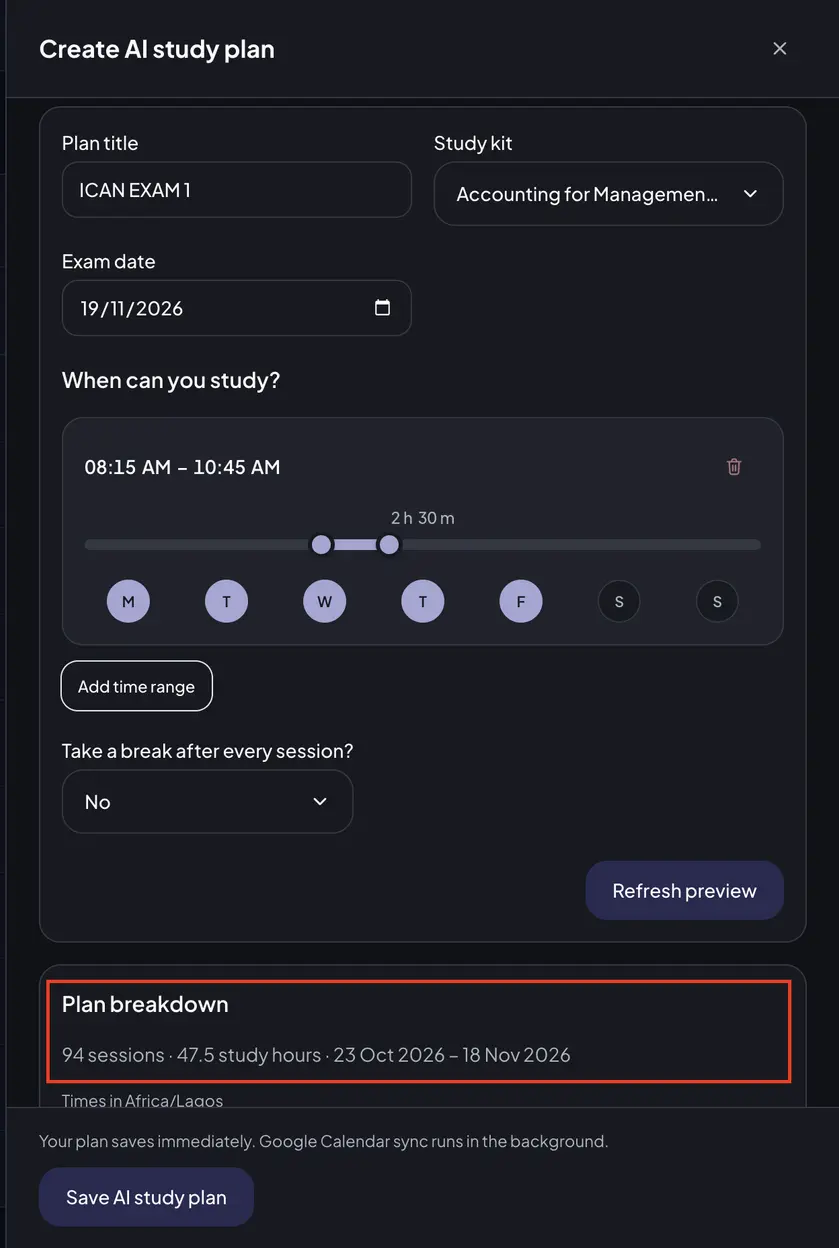
Once you have entered your details, click Preview Schedule.
Edad AI generates a proposed study plan based on your selected study kit, exam date, and available study times.
The preview includes a plan breakdown showing the proposed number of sessions, total study hours, and scheduled preparation period.
Review the schedule to see how your available time is organised before saving your plan. If you need to make changes, adjust your preferences and refresh the preview.
Step 7: Save Your Study Plan
When you are satisfied with the proposed schedule, click Save AI Study Plan.
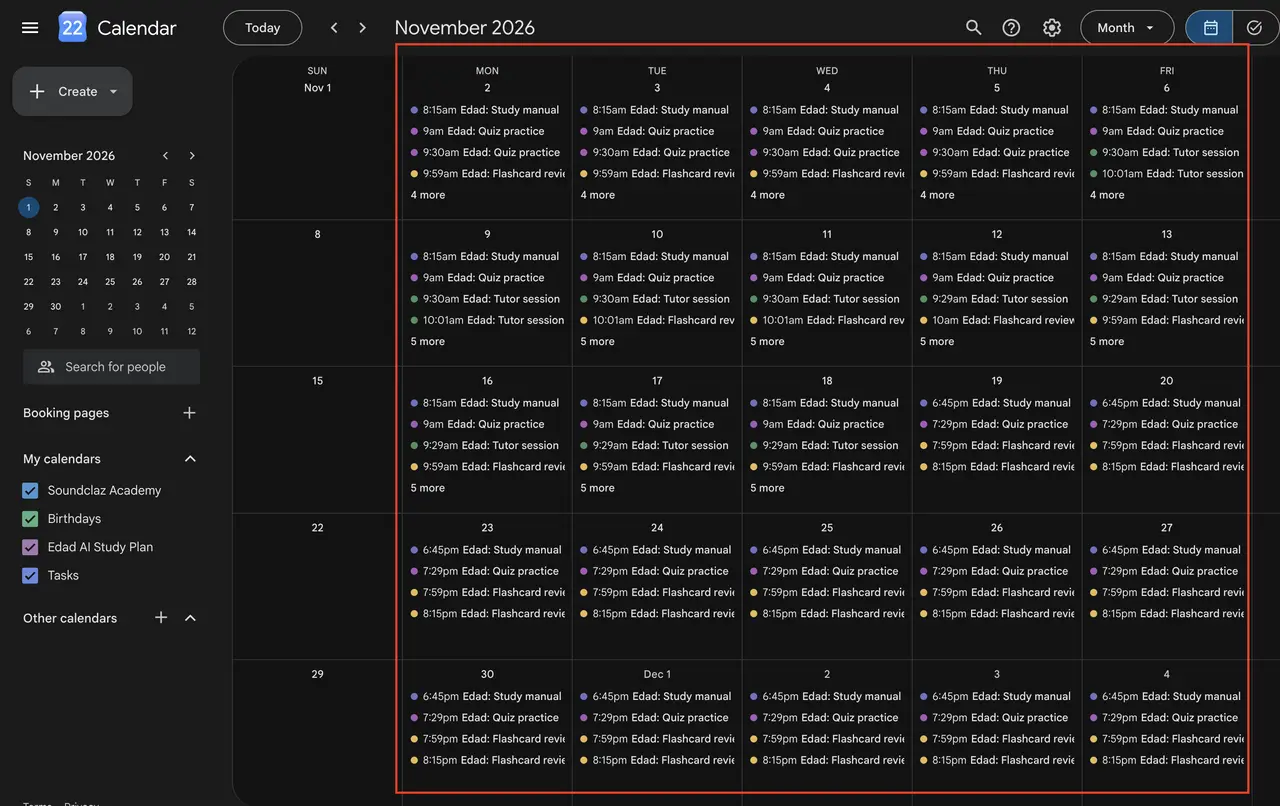
Your plan is saved, and the scheduled study sessions can sync with your connected Google Calendar. The sync runs in the background, so allow some time for the events to appear.
Open Google Calendar to check your scheduled sessions. You can then use your calendar to keep track of when you are expected to study.
Step 8: Follow Your Schedule and Study Consistently
Creating a study plan is the first step. Following it consistently is what makes it useful.
When a scheduled session begins, open your selected Study Kit and use Edad AI's learning tools to work through your materials.
Depending on your needs, you can use:
Study Kits to organise your learning materials.
Quizzes to test your understanding and identify areas that need more attention.
Flashcards to review important concepts.
AI Tutor to get personalised explanations and help with difficult topics.
As you progress, use your schedule to maintain a regular study routine and make time to revisit topics you find challenging.
Why Use the Edad AI Planner?
A good study timetable should do more than list subjects and dates. It should help you turn your exam deadline into a practical routine.
With the Edad AI Planner, you can organise study sessions around your availability, plan your preparation ahead of an exam, and sync your schedule with Google Calendar.
Instead of deciding what to do every time you sit down to study, you have a plan to guide your next session.
Start Planning Your Exam Preparation with Edad AI
You do not have to wait until an exam is close before organising your preparation.
Create your Study Kit, set your exam date, choose when you can study, and let the Edad AI Planner help you structure your time.
Ready to build your study schedule? Visit edadai.com, log in, and open the AI Planner to get started.
Plan your study time. Stay consistent. Prepare with purpose.